Animation used to live inside expensive studios. Today, it lives in your bag.
The iPad has completely transformed how animators work. Whether you’re sketching on your couch or building a full animation workflow on iPad during your commute, the possibilities are genuinely exciting. And when you pair it with the Apple Pencil? It feels like magic.
But here’s the real challenge most people face — it’s not can you animate on an iPad. Of course you can. The real question is: which app should you actually use?
There are dozens of options out there. Some are built for beginners. Some are professional-grade. Some focus on 2D animation tools for iPad, others handle 3D animation with surprising power. And yes, some are completely free.
This guide breaks it all down — beginner vs. pro, 2D vs. 3D, free vs. paid. You’ll also find a comparison table, iPad model advice, AI animation features, and a final recommendation that matches your exact situation.
Let’s get into it.
What Should You Look for in an iPad Animation App?
The best iPad animation app isn’t the one with the most features. It’s the one that fits your workflow.
Here’s what actually matters when choosing iPad animation software:
- Timeline control gives you precise command over when things move and how. Without it, your animation feels sloppy.
- Onion skinning lets you see previous and next frames — it’s essential for smooth frame-by-frame animation on iPad.
- Layer management keeps your artwork organized, especially on complex scenes.
- Frame rate flexibility means you can work at 12fps for a classic look or 24fps for cinematic smoothness.
- Export options determine whether your file is actually usable — 4K export, GIF, MP4, and file compatibility all matter.
- Audio support lets you sync dialogue or music to your frames. And
- Apple Pencil optimization separates apps that just work on iPad from apps genuinely built for it.
Key Features Checklist
- Frame-by-frame animation support
- Keyframe animation system
- Audio sync capability
- 4K export quality
- Cloud backup integration
- File format compatibility (PSD, MP4, GIF)
- Stable performance on your iPad model
Best iPad Animation Apps Compared
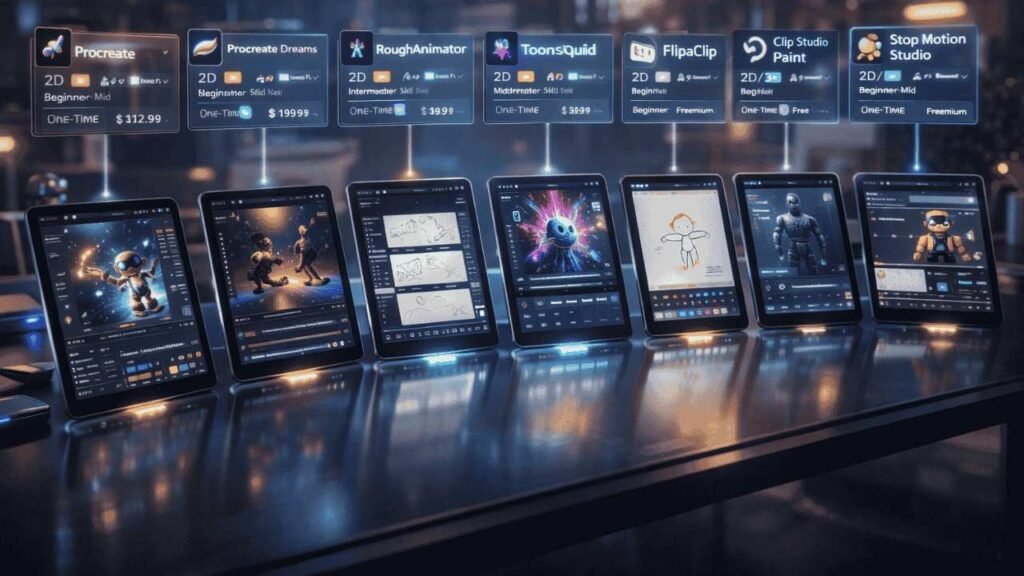
| App | Best For | Free/Paid | 2D/3D | Audio | Skill Level | Pricing Model |
| Procreate | Illustration + basic 2D | Paid | 2D | No | Beginner–Mid | One-time ($12.99) |
| Procreate Dreams | Full 2D animation | Paid | 2D | Yes | Mid–Pro | One-time ($19.99) |
| RoughAnimator | Frame-by-frame 2D | Paid | 2D | Yes | Intermediate | One-time ($4.99) |
| ToonSquid | Cel + vector animation | Paid | 2D | Yes | Mid–Pro | One-time ($9.99) |
| FlipaClip | Beginner animation | Free/Paid | 2D | Yes | Beginner | Freemium |
| Clip Studio Paint | Pro illustration + animation | Subscription | 2D/3D | Yes | Pro | Subscription |
| Blender | 3D animation | Free | 3D | Yes | Advanced | Free |
| Stop Motion Studio | Stop motion | Free/Paid | 2D/3D | Yes | Beginner–Mid | Freemium |
Best iPad Animation Apps by Category
Best iPad Animation App for Beginners
If you’re just starting out, you don’t need the most powerful tool. You need the most approachable one.
1. FlipaClip is the go-to choice for beginners. Its interface is clean and fun. The timeline is simple. You can start animating within minutes, no tutorials required. The free version gives you enough to practice and grow. It’s one of the best free animation apps for iPad right now.
2. Procreate is another solid starting point — not because it’s built specifically for animation, but because most beginners already use it for digital art. Its simple onion skinning and frame system let you dip your toes into mobile animation tools without overwhelming you.
Which iPad animation app is easiest for beginners? FlipaClip — hands down. Simple UI, free access, and a gentle learning curve make it the best first step.
Best 2D Animation App for iPad
For 2D animation tools for iPad, you have genuinely excellent options.
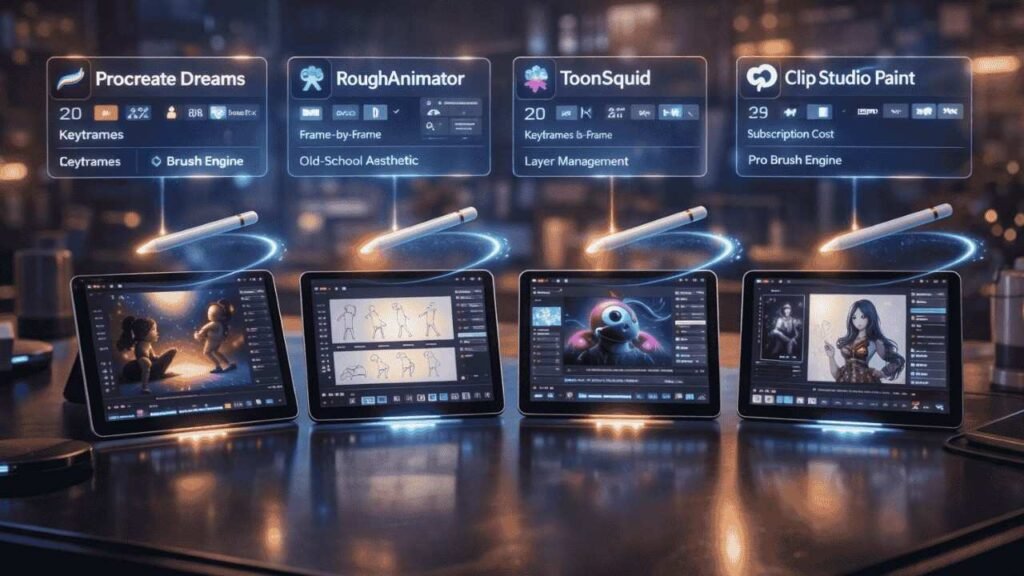
1. Procreate Dreams is the most polished 2D animation experience on iPad right now. It handles keyframe animation beautifully, supports audio, and integrates perfectly with Procreate’s brush engine. If you already love Procreate, Dreams is a natural upgrade.
2. RoughAnimator is a hidden gem. It’s built specifically for frame-by-frame animation iPad workflows — think old-school cel animation, but digital. Lightweight, fast, and precise.
3. ToonSquid sits in a sweet spot between beginner and professional. It supports both frame-by-frame and keyframe systems, has excellent layer management, and feels incredibly natural with Apple Pencil animation apps in mind.
4. Clip Studio Paint is the professional’s choice. It’s the industry standard for comic and anime-style 2D animation. The brush engine is exceptional. But it does come with a subscription cost and a steeper learning curve.
What is the best 2D animation app for iPad? Procreate Dreams for most users. ToonSquid for cel animation. Clip Studio Paint for professional studio-level work.
Best 3D Animation App for iPad
3D animation on iPad is still evolving — but it’s more capable than most people think.
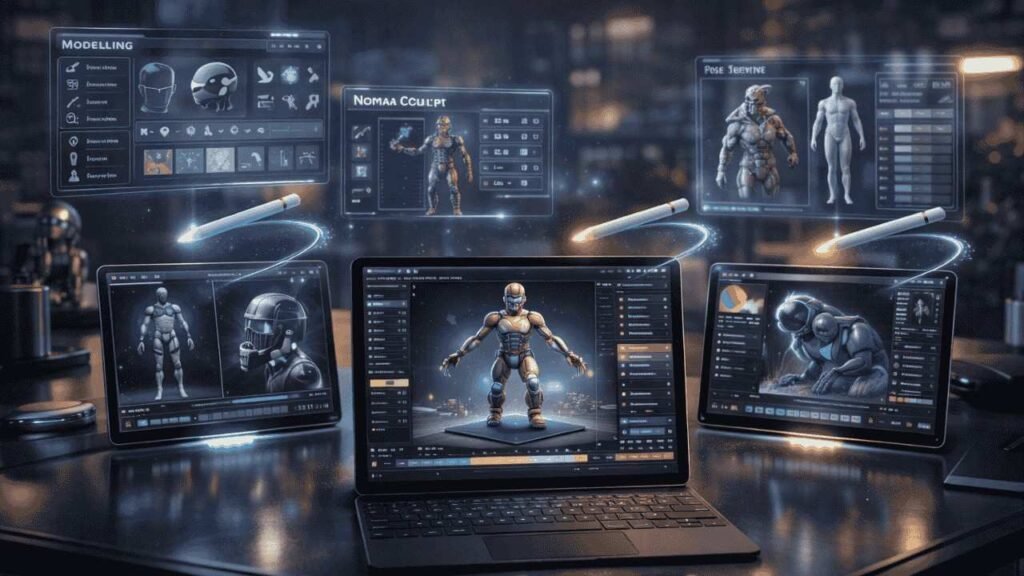
1. Blender is free, powerful, and supports full 3D animation including modeling, rigging, and rendering. However, the interface wasn’t designed for touchscreen. Pair it with a keyboard and you’ll get the most out of it. For anyone serious about 3D animation, Blender remains the industry standard — even on iPad.
2. Clip Studio Paint includes 3D model support, which is helpful for pose reference and basic 3D integration within 2D workflows.
3. Nomad Sculpt isn’t an animation app, but it’s worth mentioning for 3D sculpting that feeds into animation pipelines.
Can you do professional 3D animation on iPad? Yes — especially on iPad Pro with M1 or M2 chips. Blender on iPad Pro handles surprisingly complex 3D animation scenes, though render-heavy work still benefits from desktop power. Studios like Render Edge Studio use multi-device pipelines that increasingly include iPad for pre-production and concept stages.
Best Free Animation Apps for iPad
Is there a free animation app for iPad? Yes — several good ones.
1. FlipaClip offers a generous free tier. You get limited layers and watermarked exports on free, but it’s more than enough to learn and practice.
2. Stop Motion Studio has a solid free version for stop-motion projects.
3. Blender is completely free with no paywalls.
Keep in mind: free versions often come with watermarks, layer restrictions, limited export quality, or frame caps. If you’re creating content for clients or YouTube, upgrading is worth it.
Which iPad Is Best for Animation?
Your app choice matters. But so does your device.
iPad Pro (M1/M2) is the clear winner for serious animators. The M2 chip handles complex animation workflows on iPad without lag. RAM-heavy apps like Blender and Clip Studio Paint perform significantly better here. The ProMotion 120Hz display makes drawing feel incredibly responsive.
iPad Air is a great mid-range choice. It supports Apple Pencil (2nd gen) and handles most animation apps for iPad Pro-level work without the Pro price tag.
iPad (standard) works fine for FlipaClip and basic Procreate animation. But it supports only Apple Pencil (1st gen) and may struggle with heavier apps.
Apple Pencil compatibility, RAM, and storage directly impact your animation experience. If you’re working on product animation or medical animation projects professionally, iPad Pro is non-negotiable.
iPad vs Android for Animation
This one isn’t really a debate in professional circles.
iPad wins — consistently. The Apple Pencil’s precision and pressure sensitivity outperforms most Android styluses. The app ecosystem for iPad animation is dramatically richer. Apps like Procreate, ToonSquid, and RoughAnimator simply don’t exist on Android.
iPad apps are also better optimized. Developers build for iPad. Android animation apps often feel like afterthoughts. For animation workflow on iPad, the stability and performance consistency is simply better.
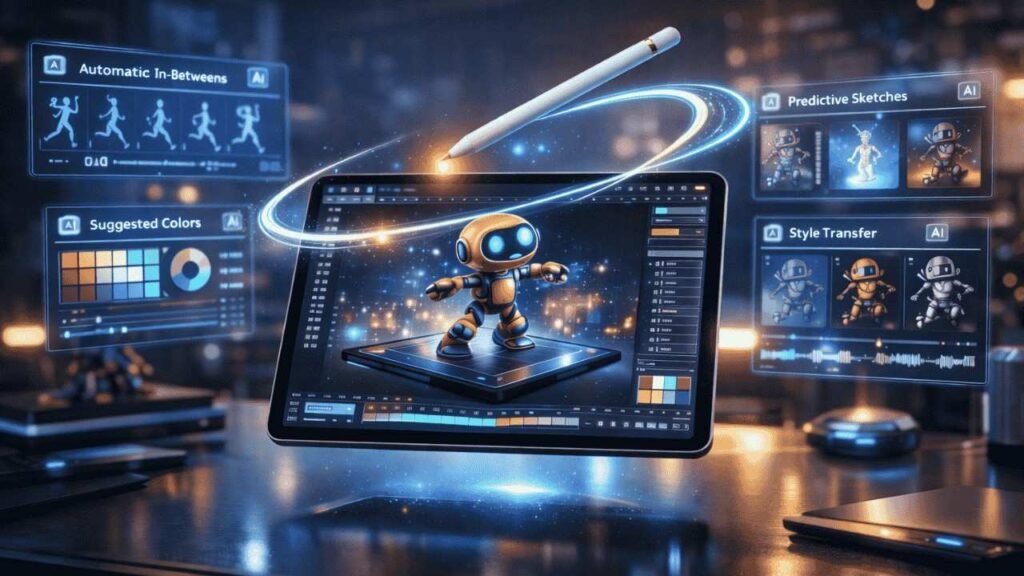
AI in iPad Animation
This is where things get genuinely exciting — and where most guides fall short.
AI is reshaping mobile animation tools fast.
1. FlipaClip’s AI voice maker lets you sync animated mouth movements to generated voice automatically. That’s a game-changer for solo creators.
2. Auto in-betweening — where AI generates the frames between your keyframes — is now appearing in several apps, dramatically speeding up workflow.
3. Motion interpolation smooths movement without manual frame creation.
4. AI background generation lets you create scene environments from text prompts.
5. AI-assisted rigging is making character animation more accessible than ever.
For animators exploring animation ideas in 2026, understanding these tools gives you a real creative and competitive edge. Whether you’re doing 3D animation, explainer content, or medical animation, AI features are worth tracking closely.
FAQs On iPad Animation App
1. Can you animate professionally on iPad?
Yes. iPad Pro with the right app supports full professional animation workflows used by freelancers and studios globally.
2. What app do YouTubers use for animation?
FlipaClip and Procreate Dreams are most popular. ToonSquid is growing fast among animation YouTubers.
3. Do I need Apple Pencil for animation?
Not required, but strongly recommended. It transforms precision, pressure sensitivity, and overall animation quality.
4. Is Procreate enough for full animation?
For simple animations, yes. For full productions, use Procreate Dreams instead — it’s built specifically for animation.
5. Which is better: Procreate or ToonSquid?
Procreate Dreams for illustration-based animation. ToonSquid for dedicated cel and vector animation workflows.
6. How much storage do animation files need?
Short clips use 500MB–2GB. Complex projects with multiple scenes can exceed 10GB easily.
Related Reads:
Best iPad Animation App For Kids
Final Recommendation
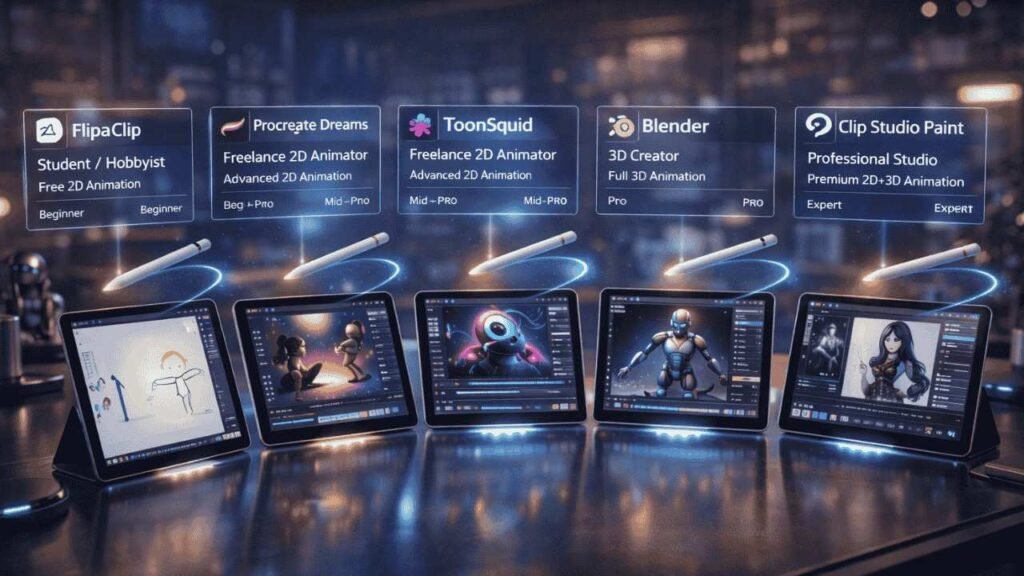
Stop guessing. Here’s exactly what you should choose:
- Student or hobbyist : Start with FlipaClip (free, fun, zero friction)
- Freelance 2D animator : Go with Procreate Dreams or ToonSquid
- 3D creator : Use Blender on iPad Pro
- Social media content creator : FlipaClip or Procreate Dreams
- Professional studio or agency : Clip Studio Paint paired with a desktop pipeline
The best iPad animation app isn’t one-size-fits-all. It’s the one that matches your goals, your skill level, and your device. Start with the right tool, and the rest follows naturally.
Now pick your app — and start creating.